PitchTAC Docs

Player Docs

Handle onboarding, join requests, live reception, and reconnect flows without needing a coach to walk you through the app.

01

Complete player onboarding

You'll be asked to choose your primary role: Note: Spectator is not a separate onboarding role. Spectators join through the Player flow and select "Spectator" when joining a specific game. See Spectator Mode.

  1. 1

    Select Player during onboarding

    Coaches proceed to tier selection. Players proceed to profile setup.

  2. 2

    Add the details your coach needs

    Jersey Number (optional, 0–99) — Helps your coach match you to their roster. Position — Choose Pitcher, Catcher, or Other.

  3. 3

    Finish display name and avatar setup

    Both coaches and players set a display name and optional profile photo. This is how you appear to others during games.

Best practice

Players should finish onboarding before arriving at the field so game-day join requests only need discovery, a code, or an invite link.

Reference

Short recording.
02

Find and join a live session

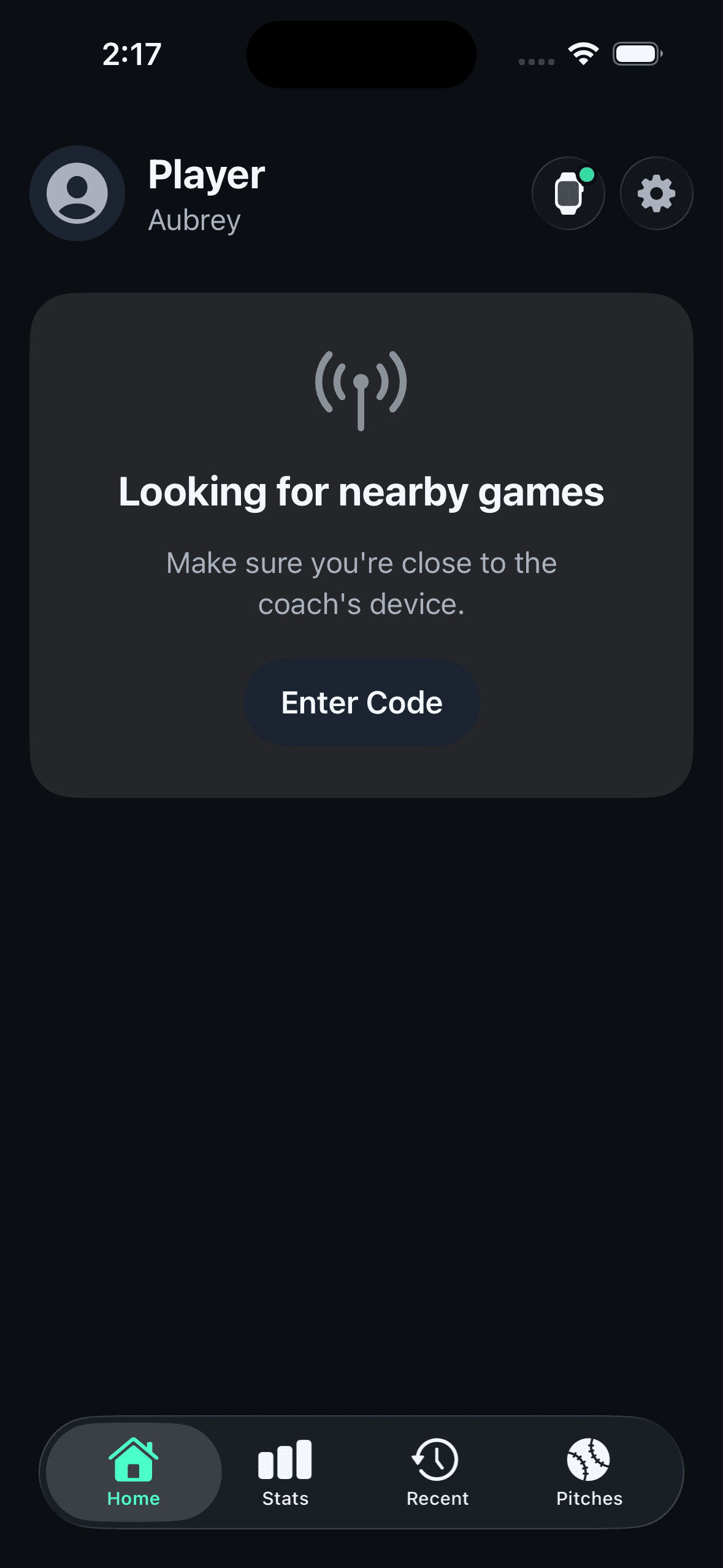
The Player home screen focuses on finding and joining games: Discovery Hero Card — Shows "Looking for nearby games" with an animated antenna icon, or "{count} live game(s) nearby" when games are found.

  1. 1

    Start from discovery on the player home screen

    Their game appears in your Nearby Games list. Each game row shows the coach's avatar, game name, coach name, and a masked session code (e.g., "Session ***456"). Tap Join on the game you want to join.

  2. 2

    Use a code or invite link when discovery is weak

    If discovery doesn't find the game: Tap Enter Code on the home screen.

  3. 3

    Check discovery troubleshooting before giving up

    Checklist: Both devices have PitchTAC open, Bluetooth is enabled, Local Network access is allowed. Permission hint: If you denied the Local Network prompt, you'll need to re-enable it in Settings. Actions: Open Settings — Jump to system settings.

Reference

Product screenshot.

Player join screen showing nearby live games and manual join options
03

Receive live calls as a player

Once the game starts, you'll see: When you're in a game and have an Apple Watch with PitchTAC installed:

  1. 1

    Watch the pitch card and game status

    Large pitch type display (72-point text) showing the most recent pitch call. Location shown below the pitch type (if included). Timestamp: "Just now" (< 5 seconds), "Called X seconds ago" (5–60s), or "Called X minute(s) ago" (> 1 minute). A glow animation plays when a new pitch arrives. Connection indicator — Dot and text showing your connection to the coach:

  2. 2

    Check your watch state

    Shows your Apple Watch connection: "Watch: connected" (green, watch icon with signal waves)

  3. 3

    Expect test signals and leave cleanly if needed

    Test signals should appear briefly in the live view, and leaving should happen through the session menu instead of force-closing the app.

Reference

Product screenshot.

Apple Watch showing the current pitch signal and inning during a live session
04

Recover when connection drops

If your connection to the coach drops: A reconnecting overlay appears: "Reconnecting to coach..." with a spinner.

  1. 1

    Let auto-reconnect run first

    A reconnecting overlay appears: "Reconnecting to coach..." with a spinner. The app attempts to reconnect for up to 5 minutes. If the coach reappears, you're automatically re-approved and the game resumes.

  2. 2

    Use rejoin actions after timeout

    A reconnecting overlay appears: "Reconnecting to coach..." with a spinner. The app attempts to reconnect for up to 5 minutes. If the coach reappears, you're automatically re-approved and the game resumes. If reconnection times out, you'll see: "Connection lost. The game may have ended."

  3. 3

    Watch for recovery banners on return

    Enable Do Not Disturb on both devices (recommended for all games). Stay within Bluetooth range (approximately 30 feet / 10 meters). If disconnected, the app will automatically attempt to reconnect for up to 5 minutes.

Fastest fallback

A known session code is usually the quickest recovery path when nearby discovery is unreliable at a crowded field.

Reference

Short recording.